SSH terminal color per server: a bash wrapper for when the hostname isn’t enough

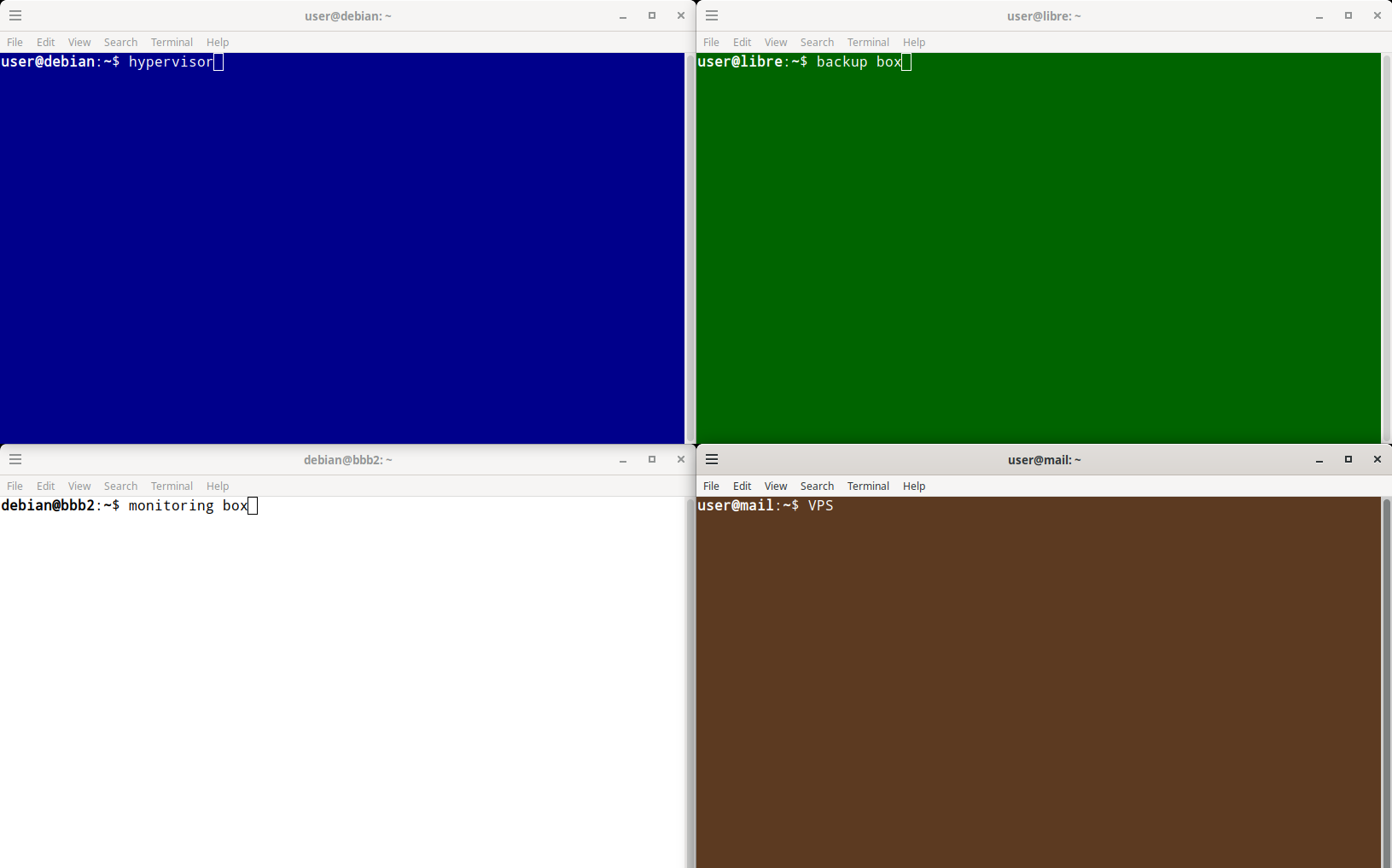
I ran commands on the wrong server at least 8 times in 5 weeks. I counted them from my own incident notes. None of them did damage.
Every terminal window looked the same. Green text, black background, one prompt shape. The hostname sat right there in the prompt and I still read past it.
On 10 November it happened again. A read-only check meant for my workstation ran on my monitoring box.
One SSH terminal color per server
So I gave every machine its own color. Hypervisor: blue. Backup box: green. VPS: brown. Monitoring box: white background, black text. Anything I haven’t listed: grey text on black.
The color shows up the moment the session opens, before my first keystroke. That’s when I need the warning.
How the wrapper works
It’s a bash function called ssh that sits in front of the real ssh command, on my workstation only. Nothing gets installed on the servers, which matters when half of them belong to clients.
ssh -Gprints the settings ssh would use, without connecting. The wrapper takes the hostname line from it, so an alias in~/.ssh/configresolves to the real host.getent ahostsv4turns that hostname into an IPv4 address. The wrapper matches on the IP, so 2 aliases for the same box get the same color.- It sends the terminal 2 escape codes: OSC 11 for the background and OSC 10 for the text color (xterm control sequences).
- It sends OSC 4 to turn the green and blue palette entries white (black on the white background). Debian and Ubuntu draw their default prompt in green and blue, and it vanished on my green and blue backgrounds.
- When ssh exits, OSC 111, 110 and 104 put back your terminal’s own background, text color and palette.
The script
# Colour each terminal by the server you ssh into.
#
# What it does:
#   Wraps ssh. Before connecting, it looks up the target's IP and sets the
#   terminal's background and text colour for that server. Your normal
#   colours come back when the ssh session ends.
#   Nothing is installed on the servers. This file lives on your own machine.
#
# Setup:
#   1. Save this file as ~/.bash_ssh_colors
#   2. Replace the example IPs below with your own servers' IPs.
#      The IPs here are fake (documentation ranges) and match nothing,
#      so until you change them every server gets the "unknown" colours.
#   3. Add this line to ~/.bashrc:   source ~/.bash_ssh_colors
#   4. Open a new terminal.
#
# Do not run this file with bash or ./ : it only defines a function.
# It has to be loaded with source.
#
# Needs a terminal that understands OSC 10/11/4 colour codes
# (GNOME Terminal, xterm, Konsole, most others).
#
# Side effect: green and blue prompt colours are forced to white (black on
# a white background) so the prompt stays readable. That also turns ls
# colours for directories and executables white on those servers.

ssh() {
  local h ip bg fg pc rc
  h=$(command ssh -G "$@" 2>/dev/null | awk '/^hostname /{print $2; exit}')
  ip=$(getent ahostsv4 "$h" 2>/dev/null | awk 'NR==1{print $1}')
  case "${ip:-$h}" in
    192.0.2.10|192.0.2.11) bg='#00008b'; fg='#ffffff' ;;  # hypervisor: blue
    192.0.2.20)            bg='#006400'; fg='#ffffff' ;;  # backup box: green
    203.0.113.10)          bg='#5c3a21'; fg='#ffffff' ;;  # VPS: brown
    192.0.2.30)            bg='#ffffff'; fg='#000000' ;;  # monitoring box: white
    *)                     bg='#000000'; fg='#aaaaaa' ;;  # unknown: grey on black
  esac
  [ "$bg" = '#ffffff' ] && pc='#000000' || pc='#ffffff'
  if [ -t 1 ]; then
    printf '\e]11;%s\a\e]10;%s\a' "$bg" "$fg"
    printf '\e]4;2;%s;4;%s;10;%s;12;%s\a' "$pc" "$pc" "$pc" "$pc"
  fi
  command ssh "$@"
  rc=$?
  [ -t 1 ] && printf '\e]111\a\e]110\a\e]104\a'
  return $rc
}
Setup
- Save the script as
~/.bash_ssh_colors. - Replace the example IPs with your own. The ones in the script come from ranges reserved for documentation (RFC 5737), so they match nothing.
- Add
source ~/.bash_ssh_colorsto~/.bashrc. - Open a new terminal.
type -t sshshould printfunction.
Running the file with bash or ./ does nothing you can see. It only defines a function, so it has to be loaded with source. That caught me out too, testing this version.
What I tested, and what I didn’t
- Ctrl-C in the middle of a session: the colors reset. Tested.
- A host that isn’t in the list: grey on black. Tested.
- I’ve used it in one terminal, on one Linux desktop. I haven’t tried tmux or screen, and I’d guess both need passthrough settings for these escape codes.
- Only the first hop gets a color. If I ssh onward from the hypervisor, I’m still in blue.
scpandrsynccall the ssh binary directly and skip the function. They don’t open a shell, so that’s fine.- Matching is by IP. If a server gets a new address from DHCP, it drops to grey until you update the list.
If you run more than 3 Linux boxes from one machine, try it. And if you’ve found a better tell than color, I’d like to hear it.
Arun Valecha runs Linux server management for businesses across India, from Mumbai.